> For the complete documentation index, see [llms.txt](https://docs.synaps.app/llms.txt). Markdown versions of documentation pages are available by appending `.md` to page URLs; this page is available as [Markdown](https://docs.synaps.app/workspace-and-billing/upgrade-your-subscription.md).
# Upgrade your subscription
Choose a paid plan for your team and confirm when the upgrade is active.
You must be the **team owner** to upgrade.
## Open your subscription
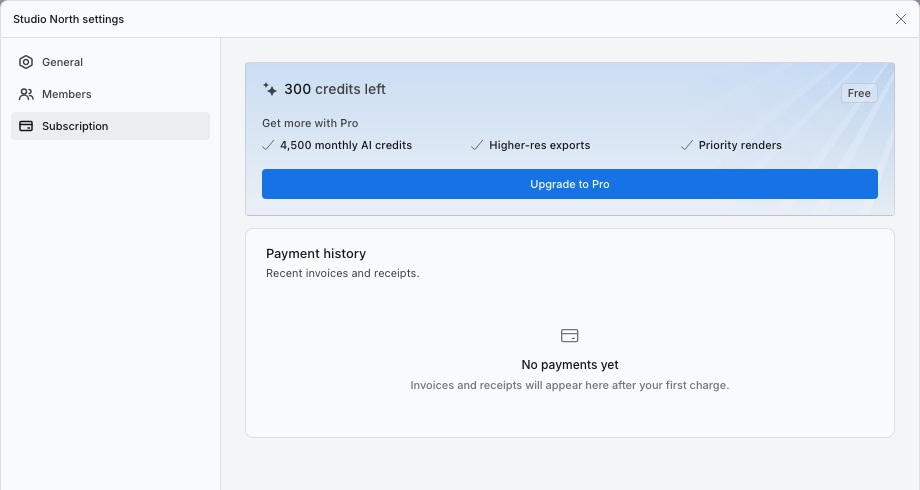
1. On the dashboard, select the team you want to upgrade using the team name at the top left.
2. Click the gear beside the team name to open **Team settings**.
3. Choose **Subscription**.
4. Click **Upgrade to Pro** to open the plan chooser.
Start from the Subscription tab for the team you want to upgrade.
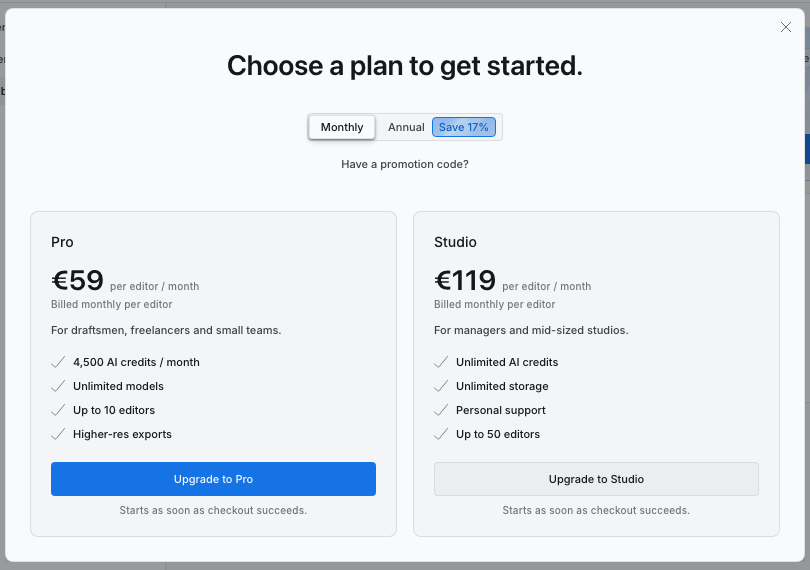
## Choose a plan
1. Select **Monthly** or **Annual**.
2. Compare **Pro** and **Studio**. Check the price and billing period shown; an annual plan is billed annually even when its price is displayed per month.
3. If you have a promotion code, open **Have a promotion code?** and enter it before continuing.
4. Click the upgrade button on your chosen plan.
Check the current price and billing period in your own plan chooser.
## Complete checkout
Review the total and payment details in Stripe, then complete checkout. Returning without completing payment leaves the subscription unchanged.
Back in Synaps, open **Team settings → Subscription**. Check that the chosen plan appears and its status is **Active**.
Paid plans are billed per editor. Review any additional seat charge when inviting or promoting someone to Editor.
## Related guides
[Change a paid plan or billing cycle](/workspace-and-billing/change-your-plan-or-billing-cycle.md) · [Cancel a subscription](/workspace-and-billing/cancel-or-keep-your-subscription.md).