> For the complete documentation index, see [llms.txt](https://docs.synaps.app/llms.txt). Markdown versions of documentation pages are available by appending `.md` to page URLs; this page is available as [Markdown](https://docs.synaps.app/get-started/sign-in-and-set-up-your-workspace.md).
# Sign in and set up your workspace
Sign in with Google, then organise your work into teams and spaces from the sidebar.
## Sign in
1. [Open Synaps](https://beta.synaps.app/). If you're signed out, you're taken to the sign-in screen.
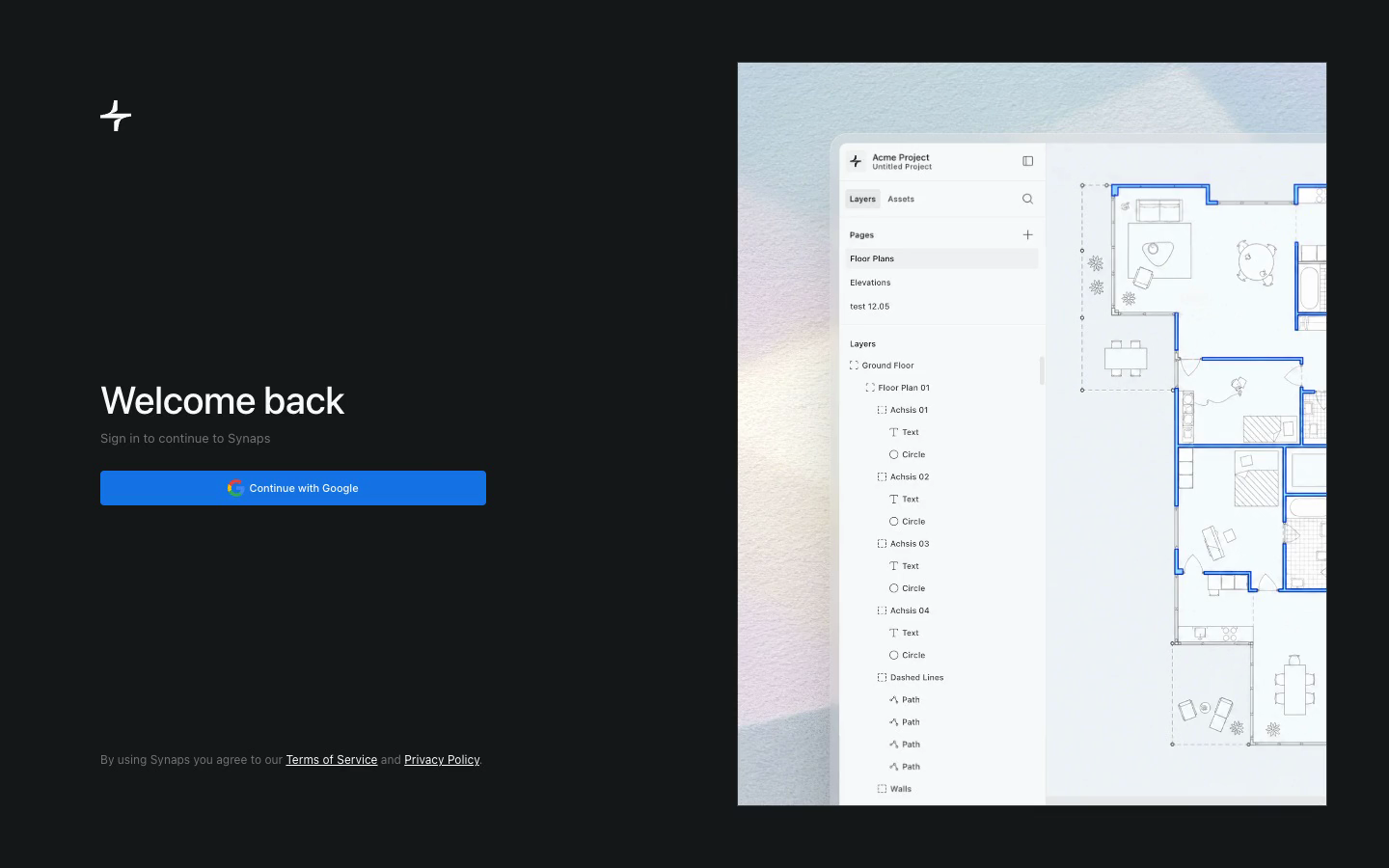
2. Click **Continue with Google**.
3. Choose your Google account.
Synaps uses Google sign-in. After signing in, you return to the page you opened.
Choose Continue with Google to sign in to Synaps.
## Understand teams and spaces
A **team** is a shared workspace. **Spaces** organise the projects within a team.
## Find your way around the sidebar
The sidebar on the left is how you move between teams and spaces.
1. Look at the top of the sidebar for the team switcher, which shows your current team.
2. Look below it for the **Spaces** list.
3. Use the search box to filter the list when you have many spaces.
4. Click a space to open its grid of projects.
## Create a team
1. Open the team switcher at the top of the sidebar.
2. Click **Add Team** at the bottom of the switcher.
If you already own a free team, Synaps may ask you to upgrade before creating another. See [Switch, create and rename teams](/collaborate/switch-create-and-rename-teams.md) for the full steps.
## Create a space
1. Find the **Spaces** heading in the sidebar.
2. Click the **+** next to it.
3. Enter a name and press **Enter**.
You need editing access to create spaces.
## What you'll see
Your team's sidebar shows its spaces. New teams appear in the team switcher, and new spaces appear under **Spaces**. Click a space to open its project grid.
## Sign out
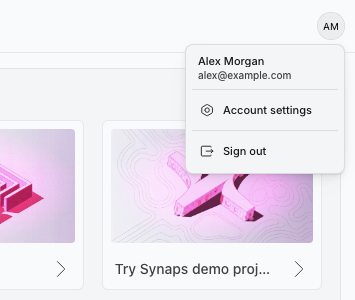
1. Click your avatar at the top right of the dashboard.
2. Choose **Sign out**.
To use another Google account, sign in again and choose that account. Access to teams and projects depends on the account you use.
Your avatar opens personal settings and the sign-out action.
## Next step
[Open your first project](/get-started/open-your-first-project.md).
More: [Share your project](/get-started/share-your-project.md).